WoW Controller Guide: Gamepad Setup, ConsolePort, Steam Deck

Play WoW with a controller: turn on native gamepad input with GamePadEnable, set modifiers and soft targeting, pick a pad, use Steam Input or ConsolePort.

Table of contents 11 sections
You can play retail World of Warcraft with a controller in Midnight without installing anything. Native gamepad input has been in the client since patch 9.0.1 (October 13, 2020), but it starts switched off: enter /console GamePadEnable 1 in the chat box, then bind your buttons in the regular Key Bindings menu. Retail still has no dedicated gamepad options page. WoW: Forever has one (Options > Gameplay > Gamepad, in beta), and most retail players who want a full console-style interface install the free third-party addon ConsolePort. This guide covers the setup step by step, the default modifier and cursor buttons, soft targeting, which pads work, Steam Input and Steam Deck, ConsolePort, and a binding plan you can learn quickly.
Checked against Blizzard's gamepad and accessibility posts, the patch 12.1.5 console variable list (Warcraft Wiki) and ConsolePort 3.3.15 on CurseForge and GitHub on November 22, 2026.
Blizzard has no support article for retail controller play, so the native setup below comes from Blizzard's patch notes and news posts plus the console variables Warcraft Wiki lists. Player-sourced details are labeled.
Does WoW have controller support in Midnight?
Yes. Retail WoW reads gamepad input natively, and that support hasn't been removed or replaced since it was added. Patch 9.0.1 listed it under new Accessibility options, alongside motion sickness settings, as "keybind, camera, cursor control, and movement support for Gamepad controllers" (Warcraft Wiki's copy of the patch notes). The same patch gave addon authors a C_GamePad API, which is what third-party controller addons build on.
What retail does not have is a menu for it. Our check of the live 12.1.5 interface files (datamined) found no gamepad on/off box in the Controls or Combat panels. You turn the feature on with a console variable and do everything else through key bindings and a few other variables. WoW: Forever is the exception: Blizzard's Explore WoW: Forever with a Gamepad post describes a full Gamepad section with a legend, footers on most screens and preset action bars, still labeled beta.
| Version | How you turn the pad on | Gamepad menu | Notes |
|---|---|---|---|
| Retail (Midnight, 12.1.5) | /console GamePadEnable 1 |
None; use Key Bindings | Native input since 9.0.1 |
| WoW: Forever | Options > Gameplay > Gamepad | Yes (beta) | XInput pads, Xbox and PlayStation icons |
| Retail or Forever plus ConsolePort | Addon setup wizard | ConsolePort's own config | Third-party, free |
How do you enable a controller in retail WoW?
Plug the pad in, log in, enter /console GamePadEnable 1 in the chat box, and the game starts reading it. Then bind your actions to gamepad buttons.
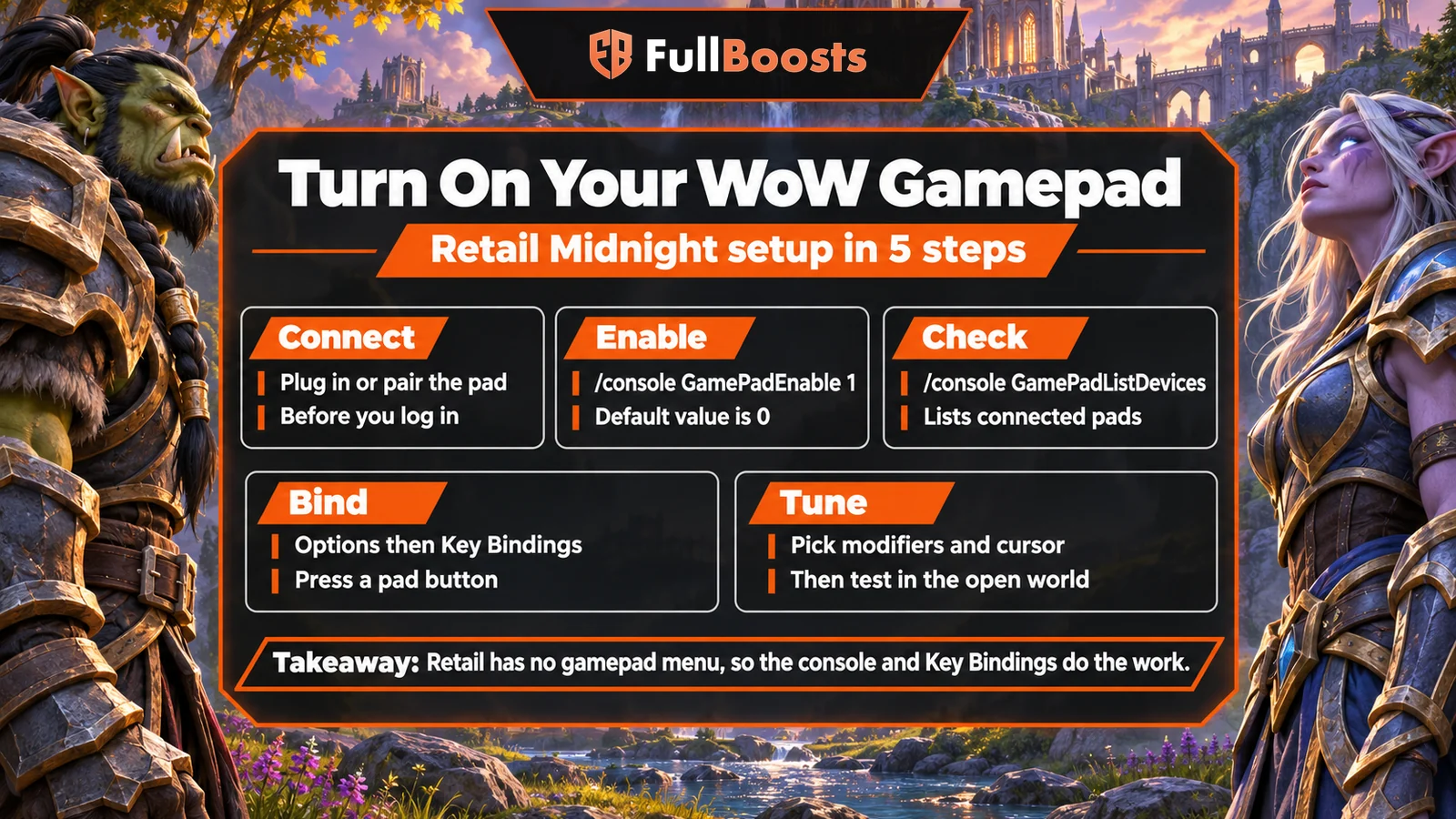
- Connect the controller to your PC or Mac before you start the game, so the system already sees it.
- Enable gamepad input. Enter
/console GamePadEnable 1. Its default value is 0, which ignores the pad (Warcraft Wiki). - Confirm the game sees it.
/console GamePadListDeviceslists every connected gamepad in the console (Warcraft Wiki). If you have two pads connected,GamePadSingleActiveIDchooses which one the game listens to; the default of 0 merges input from all of them. - Bind buttons. Open Options > Keybindings, click a slot and press a gamepad button, just as you would with a key. A player-written guide on Blizzard's forums from the 9.0.1 launch describes this method, and the 9.0.1 notes list keybind support as part of the feature.
- Test it in the open world: run, jump, turn the camera, target something and loot it.
To switch the pad off again, set the variable back with /console GamePadEnable 0. Your keyboard and mouse keep working the whole time.
What do the default gamepad buttons do?
Out of the box, the left shoulder buttons act as keyboard modifiers and the right shoulder buttons act as mouse clicks while the cursor is up. Those defaults come from the console variables below (Warcraft Wiki's complete list), and every one of them can be changed with /console <name> <value>.
| Console variable | Default | What it does |
|---|---|---|
GamePadEmulateShift |
PADLTRIGGER | Left trigger works as Shift |
GamePadEmulateCtrl |
PADLSHOULDER | Left bumper works as Ctrl |
GamePadEmulateAlt |
none | No Alt button until you assign one |
GamePadCursorLeftClick |
PADRTRIGGER | Right trigger left-clicks in cursor mode |
GamePadCursorRightClick |
PADRSHOULDER | Right bumper right-clicks in cursor mode |
GamePadAnalogMovement |
1 | Run in any direction, not just 8 |
GamePadCursorForTargeting |
1 | Pad-controlled cursor for ground spells (2 starts it at your target) |
GamePadTouchCursorEnable |
1 | Touchpad moves the cursor, on pads that have one |
GamePadVibrationStrength |
1 | Rumble strength |
GamePadFactionColor |
1 | Sets the pad's light to your faction color |
Because the modifiers stand in for Shift and Ctrl, holding left trigger and pressing A is the same binding as Shift plus that button. That gives four sets from the face buttons: plain, Shift, Ctrl, and Shift+Ctrl. Assign GamePadEmulateAlt to a spare button for more.
Worth a look in the same list: GamePadCursorCentering pins a cursor to the screen center for aiming at objects, and GamePadStickAxisButtons turns the four stick directions into extra bindable buttons.
How does targeting work on a controller?
With a gamepad, WoW picks targets and interaction points for you based on where you're facing. Blizzard calls this Action Targeting, and it added an Interact Key in Dragonflight that works the same way for NPCs, objects, quest items and loot. Both run on "soft target" console variables whose values mean 0 = off, 1 = gamepad, 2 = keyboard and mouse, 3 = always (Warcraft Wiki).
| Console variable | Default | Effect |
|---|---|---|
SoftTargetEnemy |
1 (gamepad) | Facing an enemy soft-targets it |
SoftTargetInteract |
1 (gamepad) | Facing an NPC or object lets you interact with one button |
SoftTargetFriend |
0 (off) | Set to 1 to soft-target friendly players, useful for healers |
SoftTargetInteractArc |
0 | 1 or 2 gives extra leeway, so you don't need to face things exactly |
SoftTargetInteractRange |
10 | Raise it to interact from further away |
The last two come from Blizzard's own Accessibility Updates in Dragonflight post, which also gives the menu paths: Enable Interact Key under Options > Gameplay > Controls, and Enable Action Targeting under Options > Gameplay > Combat. Those boxes switch the same features on for keyboard and mouse too. Leaving them unticked keeps them on for the pad only, because that's the gamepad setting the defaults already use.
Two practical steps follow from this:
- Bind Interact Target to an easy face button. With soft interact on, one button talks to NPCs, opens chests and loots. The keyboard default is F; your pad needs its own binding.
- Keep a hard-target button too. To pick one enemy out of a pack, bind Target Nearest Enemy to a shoulder button.
Healers can also turn on SoftTargetFriend. Blizzard's post adds that Press and Hold Casting (Options > Gameplay > Combat) works with gamepad buttons, which helps with spells you would otherwise tap repeatedly.
Which controllers work with WoW?
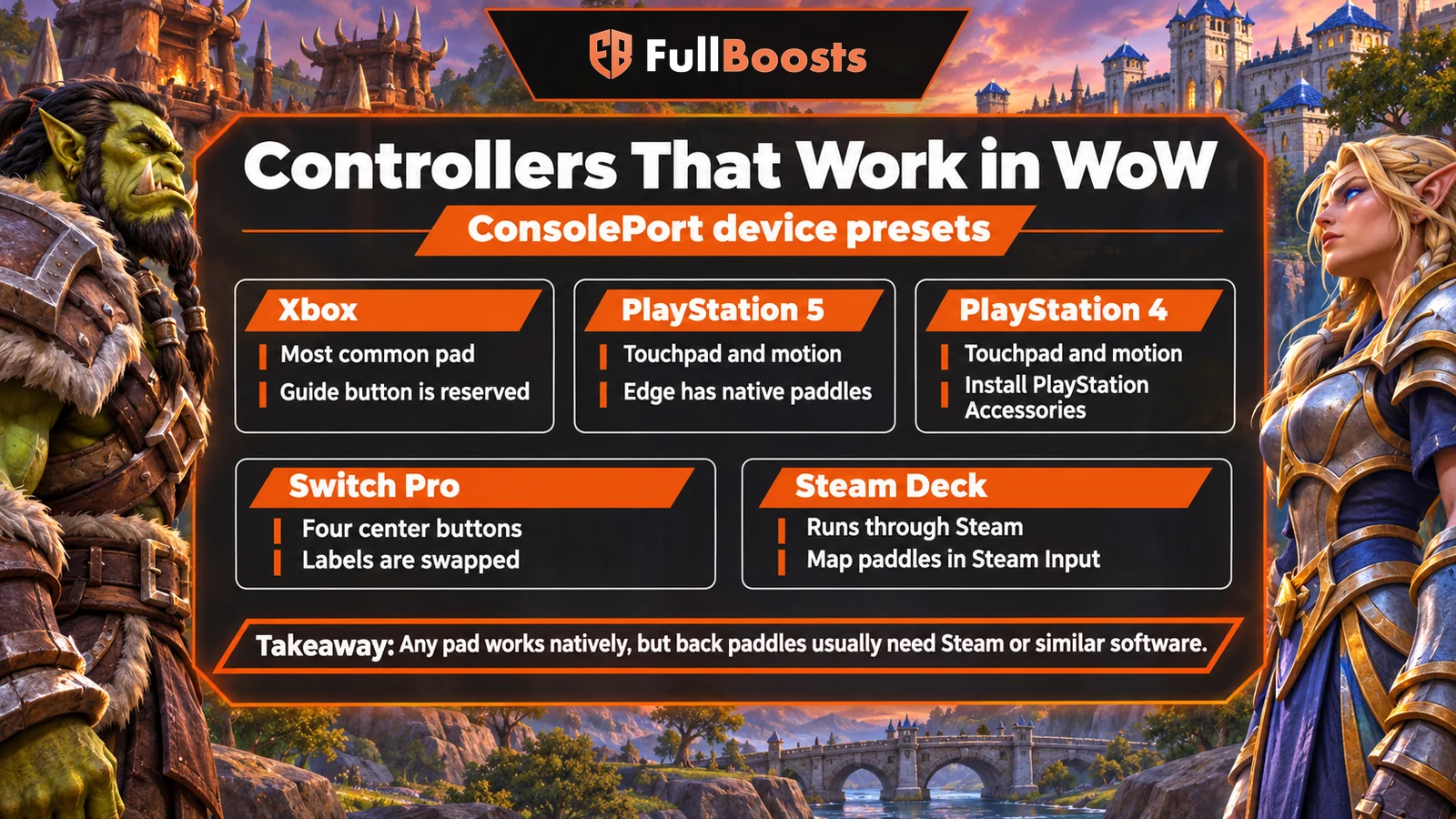
Blizzard hasn't published a supported-controller list for retail. For WoW: Forever, it says the game supports "all XInput-compatible controllers" and shows Xbox and PlayStation button icons. The best list of pads known to work in retail comes from ConsolePort, which ships presets for five devices and describes each in its own setup text (ConsolePort on GitHub).
| Controller | What ConsolePort's notes say |
|---|---|
| Xbox (incl. Elite) | Most common and well supported. The center Guide button can't be used in game. Elite paddles aren't read natively; remap them in the Xbox Accessories app or map them to keys with Steam |
| PlayStation 5 (DualSense) | The addon calls it "the best gamepad" for WoW: touchpad, motion controls and every button usable; the Edge's back paddles work natively. Full features may need PlayStation Accessories on Windows |
| PlayStation 4 (DualShock 4) | Touchpad, motion controls and every button usable. Same PlayStation Accessories note |
| Nintendo Switch Pro | Xbox-style layout with swapped face labels and four center buttons. Switch 2 Pro paddles and its C button aren't read natively |
| Steam Deck | Usually runs WoW through Proton in Steam. Paddles aren't read natively; map them in Steam Input |
The paddle rule matters most: WoW doesn't see back paddles on most pads, so remap them to a standard button in the maker's app or to keyboard keys with Steam Input or similar software.
How do you use Steam Input or a Steam Deck?
Use Steam Input when you launch WoW through Steam, as on a Steam Deck, or to make paddles send keyboard keys. Otherwise skip it.
ConsolePort's notes for Steam Deck recommend a game profile in Steam that covers at least a standard Xbox layout, with "Gamepad with Mouse Trackpad" as a good base, and paddles mapped to keyboard keys in Steam Input. Its Xbox notes suggest picking Xbox button graphics when you play through Steam Input, since Steam presents your pad as the Xbox 360 controller it emulates. Valve's Steamworks guide for players explains where those settings live:
| Where | Path | What you set |
|---|---|---|
| Steam desktop client | Right-click the game > Edit Steam Controller Configuration (only shows with a pad connected) | Per-game layout |
| Big Picture mode | Game menu > Manage Game > Controller Configuration | Per-game layout |
| Controller Settings | Gear icon > Controller Settings | Tick the PlayStation, Xbox or Generic configuration support boxes |
If the pad acts strangely on Windows without Steam involved, ConsolePort's built-in tester suggests checking for "conflicting software", naming Steam running in the background as an example. On handheld PCs it adds that the device must be in game mode, not desktop mode.
Should you use ConsolePort?
Use ConsolePort if you want the whole game, not just combat, playable from the couch. It is a third-party addon, not a Blizzard feature, by Sebastian Lindfors (listed as MunkDev on CurseForge). Its README describes it as a set of independent modules for interface navigation, gameplay UI and targeting, and it notes that since Shadowlands it uses WoW's native gamepad controls, so "no external software is required."
| Detail | Current state |
|---|---|
| Latest version | 3.3.15, uploaded November 17, 2026 (CurseForge) |
| Game versions | Retail (12.1.0 interface tag), Forever, MoP Classic, Titan Reforged Classic, Classic TBC, Classic (CurseForge) |
| Downloads | 4,389,068 on CurseForge (November 22, 2026) |
| Price | Free; the addon says it "will always be completely free to use" |
| Source | Open on GitHub, Artistic-2.0 license |
| Command | /consoleport opens its commands |
What it adds on top of native support, from its CurseForge page and in-addon text:
- A guided setup. Pick your pad's button graphics, choose a modifier scheme, set mouse emulation, run a button and stick tester, then apply recommended bindings or start from a blank slate. Recommended bindings don't overwrite keyboard bindings, but action bars are shared between the two.
- A gamepad action bar, with slot mapping that needs no drag and drop.
- Rings. Hold a binding, tilt the stick toward an item, release. The default Utility Ring adds and removes quest items and similar tools on its own; the addon suggests a separate custom ring for rotation abilities.
- A three-state cursor: free, centered for aiming and ground spells, or hidden with a crosshair.
- An on-screen keyboard that is context-aware, and a replacement for the unit right-click menu.
One Midnight caveat: Blizzard's post on Midnight's combat addon changes says addons "should not be able to automate combat decisions." ConsolePort maps your inputs and doesn't make decisions for you, so it fits that rule, but check that your other addons are current. Our Midnight addons guide covers what else still works.
How should you lay out your binds?
Two modifiers on the shoulders, a small core of abilities you press constantly, and situational spells behind combinations you use less often. ConsolePort's setup text puts the math simply: two modifiers give you four binding sets and three give you eight, and two is "enough for most players."
| Layer | Buttons held | Put here |
|---|---|---|
| Base | Nothing | Core rotation, Interact Target, jump |
| Shift layer | Left trigger | Secondary rotation, interrupt, main defensive |
| Ctrl layer | Left bumper | Cooldowns, movement abilities |
| Shift+Ctrl | Both | Utility: mount, hearthstone, consumables |
| D-pad | Nothing or modifiers | Targeting, party members, menus |
Tips that make the switch easier:
- Keep movement on the left stick and camera on the right and avoid bindings that need you to click a stick mid-fight.
- Learn the base layer first. Add one new layer only after the first feels automatic.
- Plan for the cursor. You need a pointer for ground spells and some menus. Native support clicks with the right trigger and right bumper while it is up, and ConsolePort's mouse schemes toggle it with the stick clicks instead.
- Pick a forgiving spec while you learn. Fewer buttons per rotation means fewer combinations to memorize. Our Midnight Mythic+ DPS tier list is a good place to compare specs.
- Keep a keyboard nearby for chat. Blizzard notes that even Forever's beta gamepad mode still needs a keyboard to type in chat; ConsolePort's on-screen keyboard is the retail workaround.
Build muscle memory in leveling or low Delves before you take a pad into keys. If you want gear or levels while you're still learning, the World of Warcraft hub lists our powerleveling and Delves services.
FAQ
Does WoW have native controller support?
Yes. Retail WoW has read gamepads natively since patch 9.0.1, including Midnight. It is off by default: enter /console GamePadEnable 1 to turn it on.
Why isn't my controller working in WoW?
Check that GamePadEnable is set to 1 and use /console GamePadListDevices to see whether the game sees the pad. On Windows, software such as Steam running in the background can intercept it, according to ConsolePort's troubleshooting notes.
Is there a gamepad menu in retail WoW? No. Retail uses Key Bindings and console variables. Only WoW: Forever has a Gamepad section, under Options > Gameplay, and it is still in beta.
Can I use a PS5 controller for WoW? Yes. ConsolePort calls the DualSense the best pad for WoW, with all buttons usable. On Windows you may need PlayStation Accessories for full features.
Does WoW run on a Steam Deck? Players do, usually running it through Proton in the Steam client, according to ConsolePort's device notes. Map the back paddles to keys in Steam Input, since WoW doesn't read them natively.
Is ConsolePort allowed in Midnight? It is a regular free addon on CurseForge with a Retail build for patch 12.1.0. It maps controller input rather than automating combat, which is what Blizzard's Midnight addon rules restrict.
Sources
- Blizzard, Explore WoW: Forever with a Gamepad
- Blizzard, Accessibility Updates in Dragonflight
- Blizzard, How Midnight's Upcoming Game Changes Will Impact Combat Addons
- Warcraft Wiki, Patch 9.0.1
- Warcraft Wiki, Patch 9.0.1/API changes
- Warcraft Wiki, Console variables/Complete list
- Blizzard interface files 12.1.5 (datamined), wow-ui-source mirror on GitHub
- CurseForge, ConsolePort
- CurseForge, ConsolePort 3.3.15 file page
- GitHub, seblindfors/ConsolePort
- Valve, Steam Input: Getting Started for Players
- Blizzard Forums (player guide), Guide to the new Gamepad/Controller support in 9.0.1